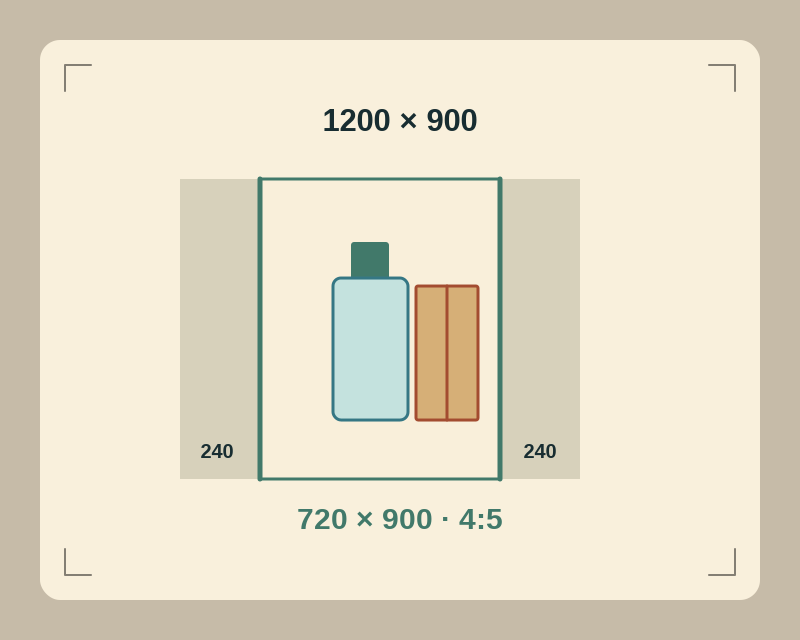
Define la proporción, calcula la ventana disponible y revisa el contenido que queda fuera antes de exportar.
Distingue proporción y tamaño
La proporción expresa ancho respecto de alto. Una imagen 4:5 tiene cuatro unidades de ancho por cinco de alto: 720 × 900 y 1080 × 1350 comparten esa forma, aunque sus dimensiones sean diferentes. Aquí 4:5 es un requisito ficticio del encargo, no una especificación universal de una plataforma.
Recortar elimina zonas del encuadre. Redimensionar cambia las dimensiones de la imagen. Estirar ancho y alto de manera independiente puede deformar el producto; no resuelve el problema de composición.
Haz una lista de elementos necesarios
Antes de mover la ventana, identifica el objeto completo que debe mostrarse, sus rasgos relevantes y cualquier texto incorporado que deba seguir legible. Distingue esos elementos del fondo prescindible. Si una etiqueta informa una variante, no la trates como decoración.
En la campaña ficticia, la fotografía contiene una botella y su caja. El brief exige mostrar ambos y reservar espacio para el mensaje. Un recorte atractivo que elimina la caja no cumple ese encargo, aunque mantenga la botella centrada.
Calcula el recorte disponible
El original mide 1200 × 900 píxeles, proporción 4:3. Si conservas los 900 de alto, el ancho para 4:5 será 900 × 4 / 5 = 720. Debes retirar 480 píxeles de ancho: un recorte centrado quitaría 240 de cada lado.
La ventana de 720 × 900 puede desplazarse horizontalmente dentro del original. Su borde izquierdo puede ir desde 0 hasta 480; desplazarla no cambia su tamaño. Comprueba botella, caja y espacio de mensaje en cada posición, sin asumir que el centro es siempre la mejor elección.
Decide qué hacer cuando no cabe
Si ninguna posición conserva lo necesario, el problema no se arregla al exportar con más píxeles. Considera una nueva toma o una composición con márgenes que aloje la imagen completa, si el diseño admite esa solución.
No inventes partes del producto para completar el encuadre ni aceptes una perspectiva deformada. En Photoshop, la herramienta de recorte permite fijar una proporción; verifica también los campos de tamaño y resolución para conocer qué operación estás solicitando.
Revisa una copia al tamaño de uso
Conserva el original y guarda una copia con proporción y versión reconocibles. Revisa la salida de 720 × 900: bordes del producto, letras, espacio para el mensaje y ausencia de deformación. Confirma por separado el formato y peso exigidos por el destino.
Entrega una breve nota: «4:5, ventana desplazada hacia la derecha, botella y caja completas». Esa decisión describe el recorte realizado y facilita adaptar después otra proporción sin empezar desde una imagen ya recortada.
Crop a campaign photo to 4:5 without distorting the product
A horizontal photo can lose important information when placed in a vertical design. Start by deciding what must survive the crop, before choosing the final file’s pixel dimensions.
Define the aspect ratio, calculate the available window and review the excluded content before exporting.
Separate aspect ratio from dimensions
Aspect ratio expresses width relative to height. A 4:5 image has four units of width for every five of height: 720 × 900 and 1080 × 1350 share that shape, despite having different dimensions. Here, 4:5 is a fictional brief requirement, not a universal platform specification.
Cropping removes areas of the frame. Resizing changes image dimensions. Stretching width and height independently can distort the product; it does not solve a composition problem.
List the necessary elements
Before moving the window, identify the complete object that must appear, its relevant features and any embedded text that must remain readable. Separate these from dispensable background. If a label identifies a variant, do not treat it as decoration.
In the fictional campaign, the photograph contains a bottle and its box. The brief requires both to be visible, with room for a message. An attractive crop that removes the box fails that brief, even if the bottle stays centered.
Calculate the available crop
The original measures 1200 × 900 pixels, a 4:3 ratio. Keeping all 900 pixels of height, the width for 4:5 is 900 × 4 / 5 = 720. You must remove 480 pixels of width: a centered crop would remove 240 from each side.
The 720 × 900 window can move horizontally within the original. Its left edge can range from 0 to 480; moving it does not change its size. Check the bottle, box and message space at each position instead of assuming the center is always best.
Decide what to do when it will not fit
If no position preserves the necessary content, exporting more pixels will not solve the problem. Consider a new photograph or a layout with margins accommodating the complete image, if the design allows it.
Do not invent parts of the product to fill the frame or accept distorted perspective. In Photoshop, the crop tool allows a fixed aspect ratio; also inspect dimension and resolution fields so you understand the operation requested.
Review a copy at its intended size
Keep the original and save a copy with an identifiable ratio and version. Review the 720 × 900 output: product edges, lettering, message space and absence of distortion. Confirm the destination’s format and file-size requirements separately.
Deliver a short note: “4:5, window moved right, complete bottle and box.” This describes the crop decision and makes another ratio easier to produce without starting from an already cropped image.
把活动照片裁成 4:5,同时保持产品形状
横向照片放入竖版设计时,可能丢失重要信息。先决定裁剪后必须保留什么,再选择最终文件的像素尺寸。
确定比例,计算可用窗口,检查被移除的内容,然后再导出。
区分比例与尺寸
宽高比表达宽度与高度的关系。4:5 表示宽四份、高五份;720 × 900 和 1080 × 1350 的形状相同,但像素尺寸不同。本文的 4:5 是虚构项目的要求,并非所有平台通用的规格。
裁剪会移除画面区域,调整尺寸会改变像素尺寸。分别拉伸宽与高可能使产品变形,无法解决构图问题。
列出必须保留的元素
移动裁剪窗口之前,先明确必须完整展示的物体、关键特征,以及需要保持可读的图片内文字。将它们与可舍弃的背景区分开。如果标签用于说明产品款式,就不能把它当作装饰。
虚构活动的照片中有一个瓶子和它的包装盒。任务要求同时展示两者,并为宣传信息留出空间。即使瓶子居中,删掉包装盒的漂亮裁剪也不符合要求。
计算可用裁剪范围
原图为 1200 × 900 像素,比例 4:3。保留全部 900 像素高度时,4:5 所需宽度为 900 × 4 / 5 = 720。因此必须去掉 480 像素宽度;居中裁剪会从两侧各去掉 240 像素。
720 × 900 的窗口可以在原图内水平移动。左边缘可以位于 0 至 480 之间,移动不会改变窗口尺寸。逐个位置检查瓶子、包装盒和宣传文字空间,不要假定居中一定最好。
放不下时重新选择方案
如果任何位置都无法保留必要内容,增加导出像素也没有用。可以考虑重新拍摄,或在设计允许时使用留白布局,容纳完整照片。
不要虚构产品部位来填满画框,也不要接受变形的透视。在 Photoshop 中,裁剪工具可以固定宽高比;同时检查尺寸和分辨率字段,弄清实际要求执行的操作。
按使用尺寸检查副本
保存原图,并为副本标明比例和版本。检查 720 × 900 输出中的产品边缘、文字、信息空间,以及是否变形。目标渠道要求的格式和文件大小应另行核对。
交付时附上一句说明:“4:5,窗口向右移动,瓶子和包装盒完整保留。”记录这项决定,有助于以后从原图制作其他比例,避免从已裁剪的图片重新开始。
Fuentes y método
Fuentes consultadas el 22 de noviembre de 2026. Los casos y datos numéricos de los ejercicios son ficticios. Editorial standards · Disclosures.