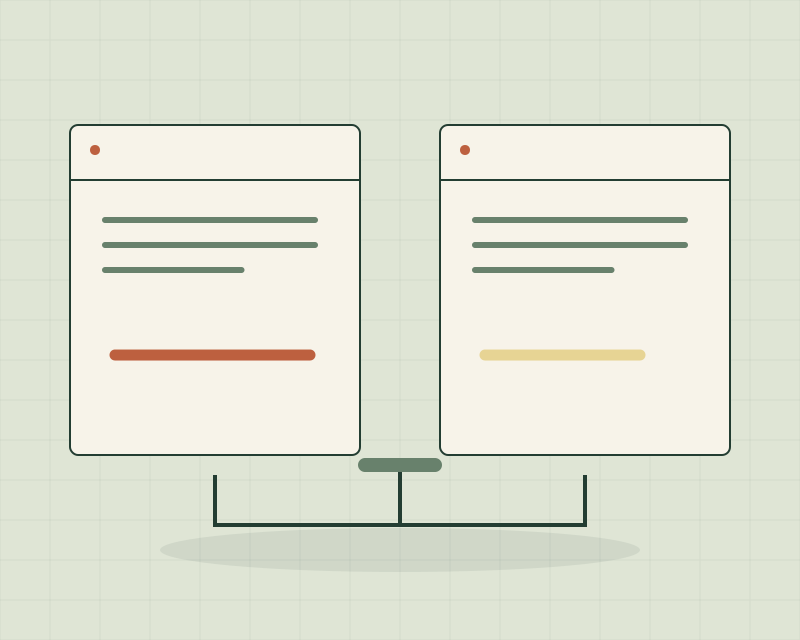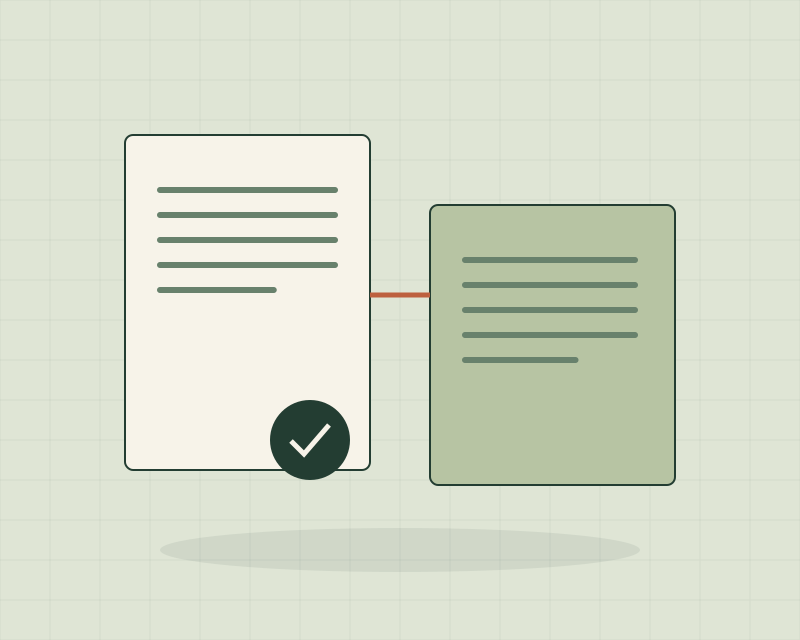
Check editorial equivalence before linking the two addresses. Declare the preference in the PDF response and verify what visitors receive from outside the site.
Decide whether both serve the same purpose
Compare the main text, requirements, dates and language. If the terms PDF includes a form that the page does not offer, account for that function before treating it as a duplicate. A workbook that accompanies a guide deserves its own review even if both share a name and cover.
Write down the destination you want to keep
Choose the final URL of the HTML page. Confirm that it shows the complete document, can be crawled and is eligible for indexing. If the page uses a canonical element in its head, check that it points to its own final URL. Use the same address in the main links and sitemap.
Add the signal to the file
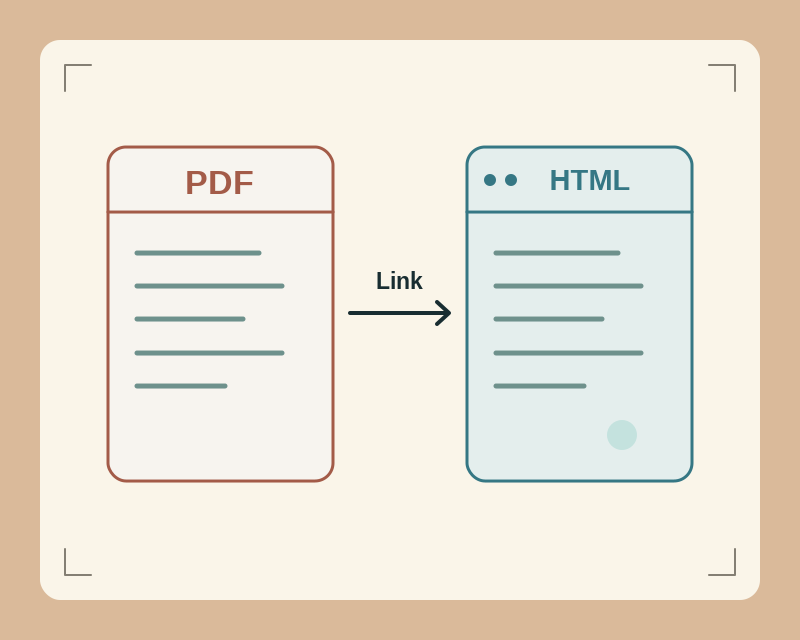
In this example, the booklet's HTTP response includes the header Link: <https://example.org/condiciones/>; rel="canonical". Configure it where the public PDF is served, such as the file server or CDN. Adding a tag to the designed document does not create that header.
Test the actual download
Open the download button's address with a GET request and examine the response headers in your browser's network panel. If it redirects, inspect the final response containing the PDF, confirm it still delivers the right file and copy the canonical destination to open it separately. Check for conflicting values.
Keep a record of the pair
Record the two final URLs, the content date or version and the header you saw. Repeat the check if you move the files or revise one format on its own. The header expresses a preference for Google web search; its presence does not prove which URL Google chose or whether either is indexed.
Follow the evidence.
- Google Search Central · Consolidate duplicate URLs ↗
- Google Search Central · PDFs in Google Search results ↗
Sources checked November 14, 2026. The exercise scenarios and figures are fictional. Our editorial standards.